Hey,
I think it's worth doing a quick tutorial following a question in software support related to
how to change page from the wheel buttons which may help other people and also guide you to take advantage of the power of SLIMax Manager Pro.
NAVIGATION BUTTONSThis quick tutorial explains how to assign buttons of your steering wheel (or any other device with buttons) to change the page of your VDASH-EMU. You can toggle ON/OFF the virtual button box included with your emulator with a button as well.
First you have to edit your car setup using the
Advanced Setup Options.
For that, we use the shortcut inside the Basic Setup Options to edit the current setup, select the
Basic Setup Options menu and make sure the
VDASH-EMU icon is selected in the shelf (see the top of the dialog)

then hit the
EXPERT LEVEL tab and click the button "
Advanced Options" on the bottom of the dialog.

Now you are in advanced options to edit your car setup go to
DISPLAY > CONTROLS > VDASH-EMU and assign the buttons to the navigation functions see the screenshots below.
you can search for "vdash display" to find the functions quickly
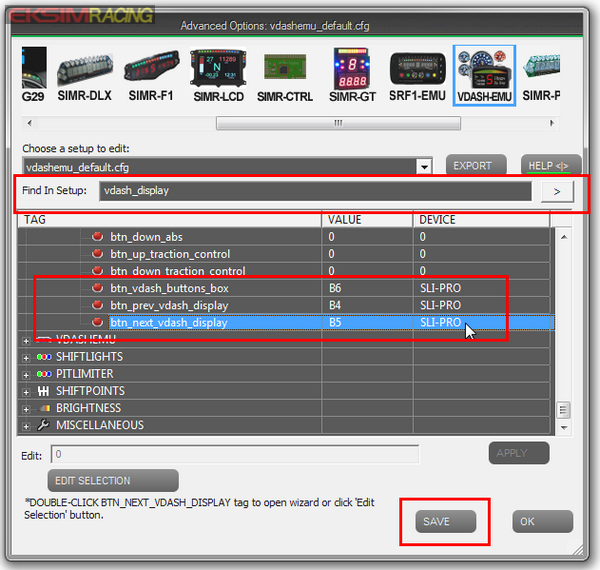
Assign button to each function to go
PREV PAGE or
NEXT PAGE and TOGGLE ON/OFF the ButtonBox if needed.
How to cycle through a range of pages and NOT ALL pages?By default you cycle through all pages (so from 1 to n, up to 48 ) but in the
General Settings of VDASH-EMU you have an options to define the start page and end page number which restrict the number of pages visible. After doing so the previous and next button will cycle through these pages only.
 How to prevent one EMU to change the page?
It can be useful when you have 2 or more VDASH-EMU to block/lock the current page of one EMU but continue to cycle through pages on the other emulators, how to do it?
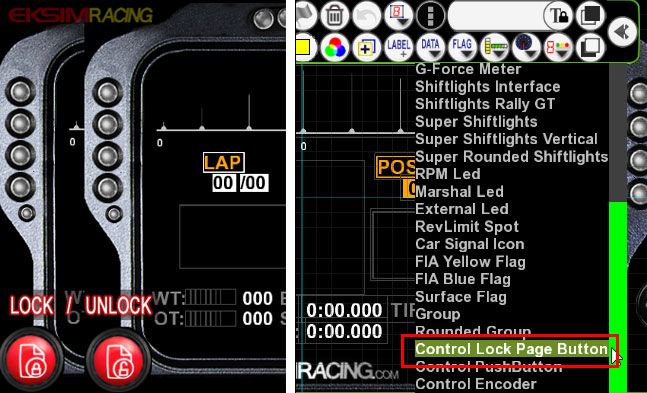
Simply add a special button object named "Control Lock Page Button" (in the MISC menu) to the page you want to lock. Click this special button to lock/unlock the page.