 Overview
The OpenSR Console Bridge allows users to bridge telemetry between console-based racing games (by Codemasters/EA for PS5 and Xbox) and sim racing hardware/dash apps.
By routing telemetry data from your console into OpenSimRelay, you can use PC-based dashboards (such as VDash-emu), racing display like SLI-PRO and other telemetry-driven peripherals while playing on your console.
Step 1: Console Game ConfigurationBefore configuring the PC software, you must set up the telemetry output within the game menu on your PS5 or Xbox.

Launch the game on your console.
Navigate to the UDP Telemetry settings menu.
Apply the following settings:
UDP Telemetry: Set to ON.
Rate: Set to 60Hz.
Broadcast: Set to OFF (Do not activate).
IP Address: Enter the actual local IP address of your PC running OpenSR (e.g., 192.168.1.170).
UDP Port: 20777
Format: Select the format that corresponds to the target game version (e.g., 2024, 2025, 2026)
Step 2: OpenSR PC ConfigurationTo ensure the Console Bridge can receive the data packets sent from your console, the PC software must be configured to listen on all network interfaces.
1. Configure the Game Plugin
Launch OpenSR .
Navigate to the Games tab in the sidebar.
Select the specific game you are playing (e.g., EA F1 25).
Click on the Settings tab.
Set the Data Out Ip Address to:
0.0.0.0Leave the UDP Port to default: 20777
Click the Save button.
Note: Setting the IP to 0.0.0.0 on the PC side tells OpenSR to listen for incoming data on any available network address, allowing it to catch the signal sent from your console.
Step 3: Operating the Bridge1. Launching the Bridge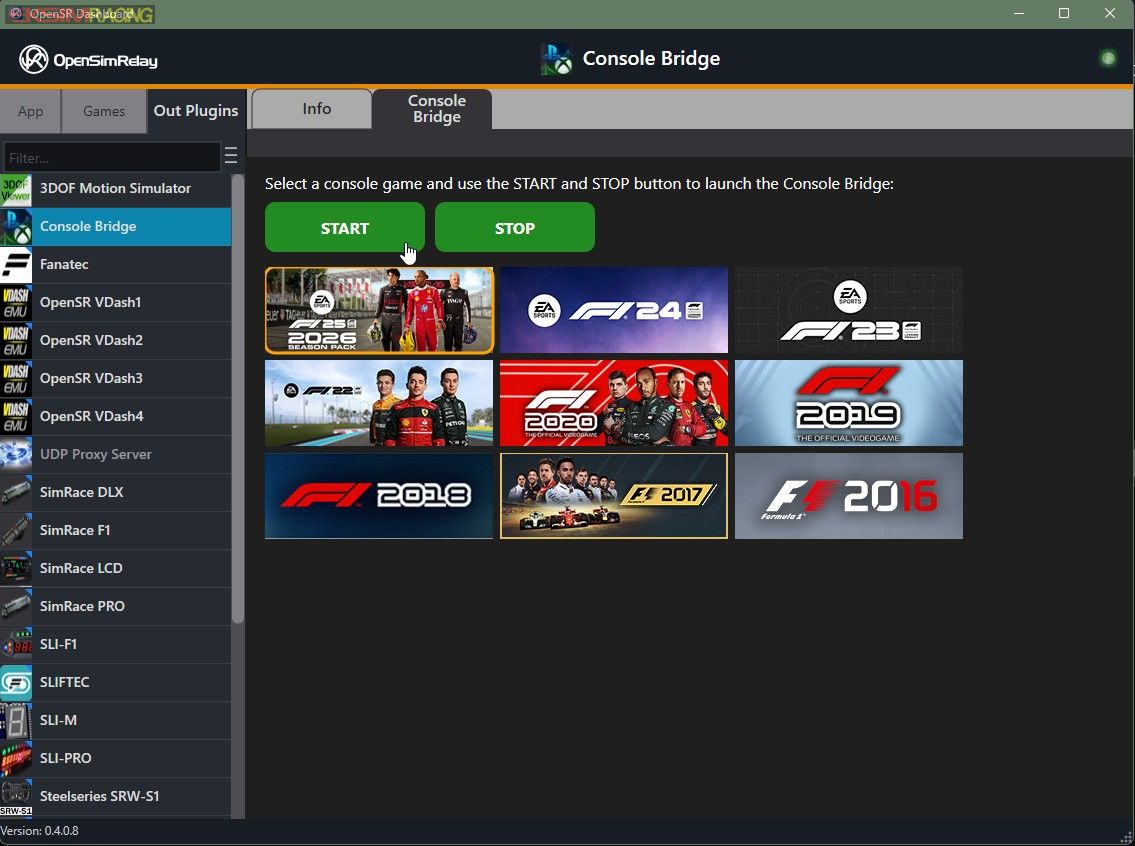
In the Out Plugins select Console Bridge plugin and click on the "Console Bridge" tab.
Select your game: Click on the icon/tile of the console game you are currently running.

Click the green
START button to launch the bridge.
2. Windows Firewall PromptUpon launching the bridge, Windows may display a Security Alert/Firewall prompt asking for permission to allow the application to communicate on your network.
You must click "Allow access" to enable the communication between your console and the PC. If this is blocked, no telemetry data will reach your sim rig.
3. Telemetry FeedbackOnce the bridge is running, telemetry data is fed into OpenSimRelay. You can now open any compatible output plugin (such as VDash or racing display or any sim racing device supported) to view your real-time game data.
4. Stopping the SessionWhen you have finished your gaming session, return to the Console Bridge tab in the OpenSR Dashboard and click the STOP button or simply close the Console Bridge app.
Troubleshooting SummaryIssue /Solution
No data appearing on dash: Ensure you clicked Allow on the Windows Firewall prompt.
Bridge not connecting: Check that the Game plugin Settings IP is set to 0.0.0.0 and the Console Game IP is set to your PC's actual local IP.
Incorrect Data / No Sync: Ensure the Format selected in the console game settings matches the game version selected in OpenSR.
Network issue: Ensure your PC firewall allows traffic through the designated Data Out Port (default: 20777).
