Hi,
If you want to expand your cockpit with multiple digital dashboards whether you are using Android tablets, Windows PCs and associated USB VoCore screens or Stream Decks, this guide will show you how to map up to 4 separate displays using the OpenSR.
Overview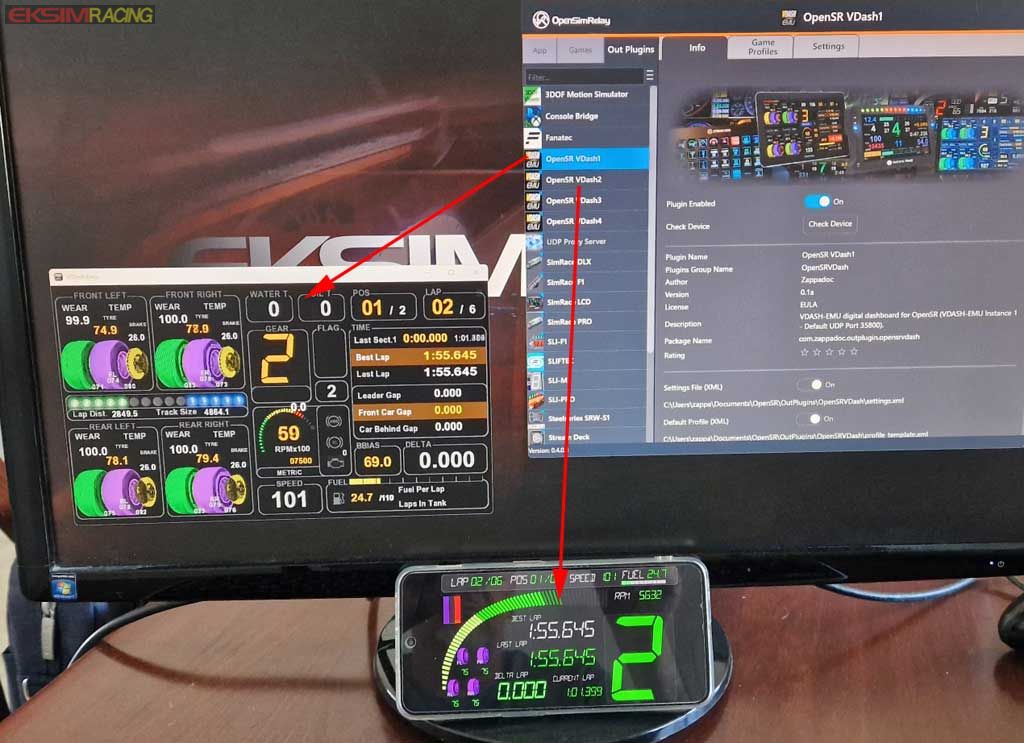
VDASH-EMU is a free sim racing dashboard app that acts as a client for OpenSR. To run multiple displays, each VDASH instance must be assigned a unique Network UDP Port. This allows the OpenSR server to distinguish between "VDash 1," "VDash 2," and so on, sending the correct telemetry to the correct screen.
PrerequisitesOpenSR Server: Installed and running on your gaming PC.
VDASH-EMU: Installed on your target devices (up to 4 devices/screens on PC/laptop/Android Tablet/Phone) .
Network: All Android devices must be on the same local LAN or WiFi network as your PC
Step-by-Step Configuration1. Set the Unique UDP Ports in VDASH-EMUFor every single display you want to use, you must configure a specific port in the VDASH-EMU settings.
Open VDASH-EMU on your device.
Navigate to the General Settings menu.
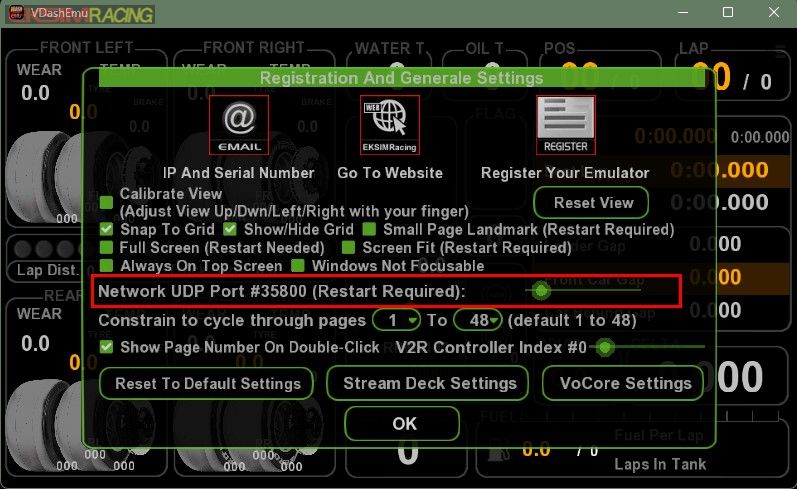
Locate the field: Network UDP Port #XXXXX (Restart Required).
Assign the ports based on the display number you want in OpenSR with the slider:
Display 1 → Port 35800
Display 2 → Port 35802
Display 3 → Port 35804
Display 4 → Port 35806
Click OK and restart the VDASH-EMU app for the changes to take effect.
VDASH 1 on Windows
VDASH 2 on Android smartphone
 2. Activate the Plugins in OpenSR
Now that your devices are "
listening" on the correct ports, you need to tell OpenSR to send data to them.
Launch OpenSR on your gaming PC.
Go to the Out Plugins tab in the sidebar.
You will see the list of available dashboards: OpenSR VDash1, OpenSR VDash2, OpenSR VDash3, and OpenSR VDash4.
Find the plugin that corresponds to your device (e.g., if your tablet is set to port 35800, select OpenSR VDash1).
Toggle the Plugin Enabled switch to On if not already activated.
3. Optimizing for Your Game (Game Profiles & Editor)Since different racing games handle telemetry differently, you can create specific configurations for each title/car to ensure your dash behaves correctly.
 Select Your Game:
 Navigate to the Game Profiles tab. Here, you can select your current target game (e.g., Assetto Corsa Rally or BeamNG.drive) from the grid of supported titles.
 Fine-Tune Settings:
 Switch to the Edit Profiles tab. From here, you can load a configuration file (XML), create a New profile, or Clone an existing one.
Customize Behavior: Use the editor to adjust gear definitions (Reverse/Neutral), set your preferred units (Metric/Imperial), and tweak the Laptime Report or Blink delays to match your preference.
Save: Don't forget to click Save to store your custom profile for future use.
4. Final VerificationOnce the plugin is enabled and your game profile is set, your VDASH-EMU screen should automatically connect and begin displaying real-time telemetry (speed, lap times, tire temps, etc.) from your favorite game.
Quick TipsCustomization: All VDASH pages can be fully customized using the integrated editor, or you can download hundreds of existing templates to change the look of your different screens.
Hardware Tip: Using USB VoCore screens is a great, cost-effective alternative to using multiple tablets .
Troubleshooting: If a screen isn't updating, double-check that the UDP Port in the app matches the VDash number enabled in OpenSR and ensure your firewall isn't blocking the connection.
