
Attention this tutorial is outdated
Check the OpenSR User Guide for creating MACROs.
How to configure the ButtonBox or any control on your custom display page?
This is really simple to configure if you follow the instructions below:
– start by writing a list of functions of your game you want manage with your virtual Button-Box like setting the Brake bias or changing the Fuel Mix or whatever you want
– go to your game and write down the the keyboard sequences needed to execute the function (assign keyboard key to the function if needed and save game settings)
– test the sequences by typing keys on your keyboard
Now define the function associated with button or encoder for example Brake Bias can be assigned to Encoder 31/32 (or button 31 and 32) and game control settings Increase value with K and Decrease value with L.
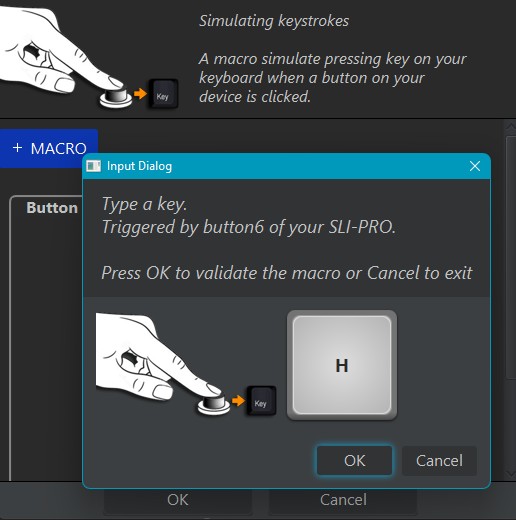
Or another example, the Horn function must be assigned to button 6 and in game settings it’s assigned to H key,
create a MACRO:
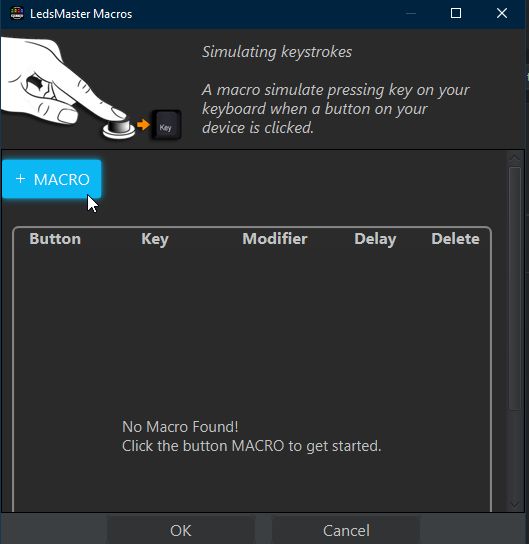
click the corresponding button

type the corresponding key on your keyboard
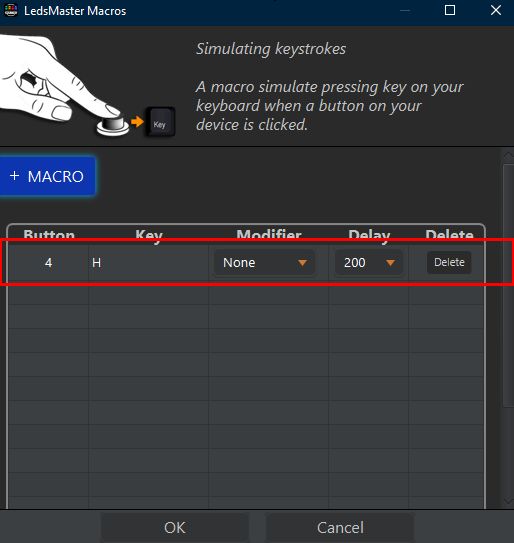
that’s it!
Congrats! you have successfully mapped your button 6 of your Virtual Button-Box to your game function.
Now when you hit/touch the button you send the key H to your game.
You can obviously map encoder and rotary switch as well.
Notes:
– YOU CANNOT USE THE BUTTON-BOX or any control created on custom page if you run VDASH-EMU on the same PC where the game runs. This is a NORMAL behavior by clicking on the control button you automatically exit the context of the game. Obviously, you can register and install the Windows version of VDASH-EMU on another PC or Laptop or Windows Tablet connected to your LAN Network.