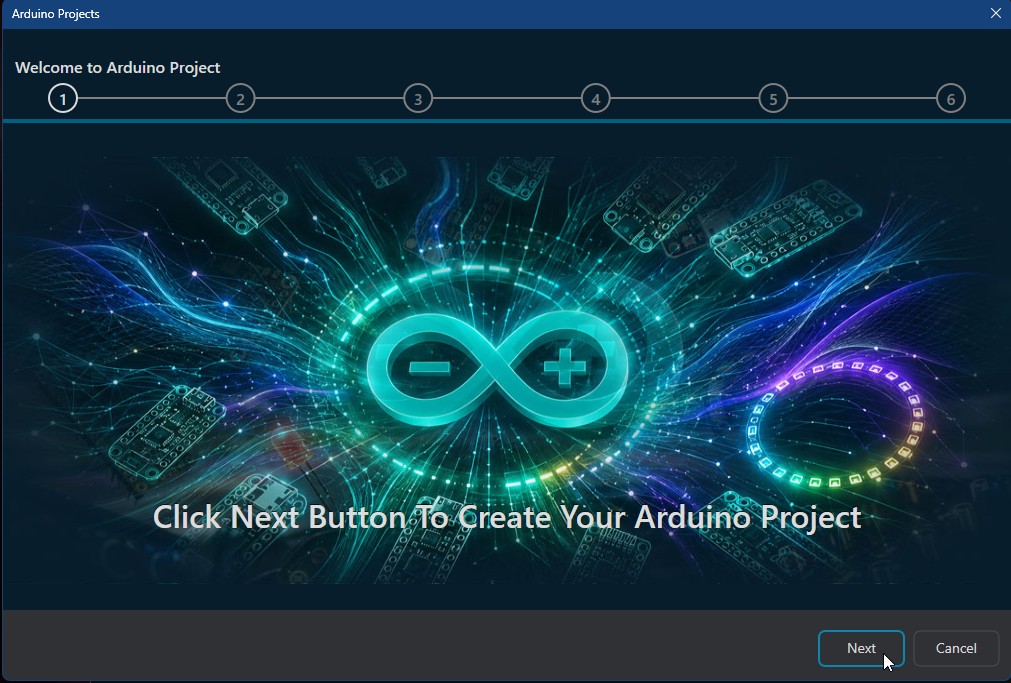
After clicking the [ + ] button on the Arduino Projects dashboard, you will enter the configuration wizard.
Welcome to Arduino Project
The first page is a brief introduction to the setup process. Review the overview and click Next to begin defining your hardware.
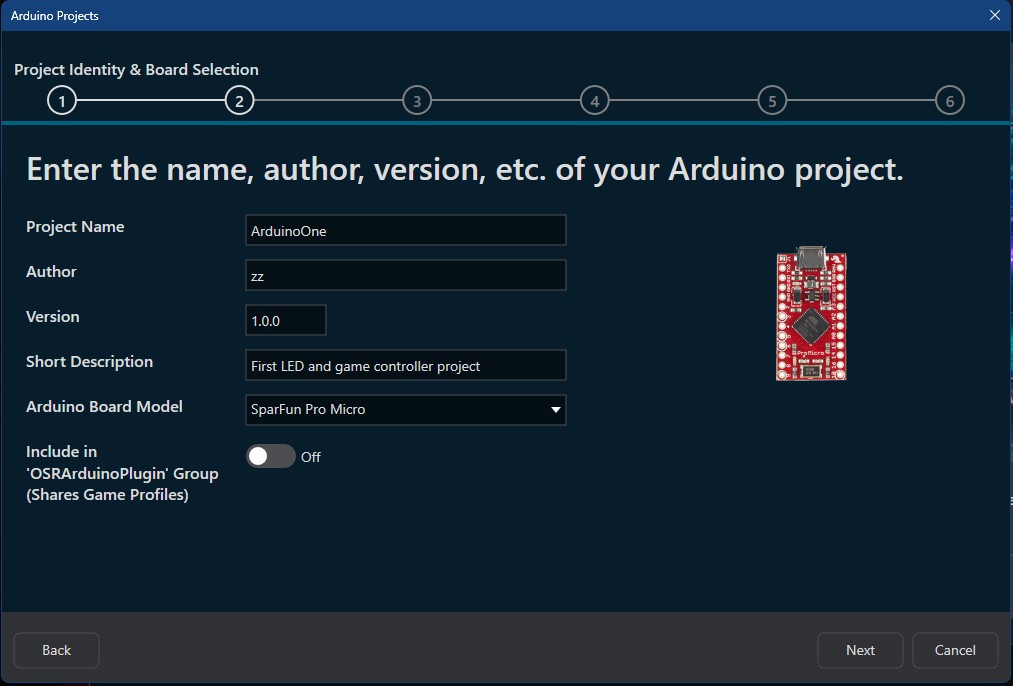
Project Identity & Board Selection
This is the most critical setup step where you define the “DNA” of your hardware. Here, you will provide the identity of your device and select the compatible controller.
Project Identity
Fill in the following fields to organize your project:
- Project Name: The primary name for your device.
- Author: Your name or organization.
- Version: The current firmware or hardware version (e.g., 1.0.0).
- Short Description: A brief summary of what this device does (e.g., “Main Button Box with RPM LEDs”).
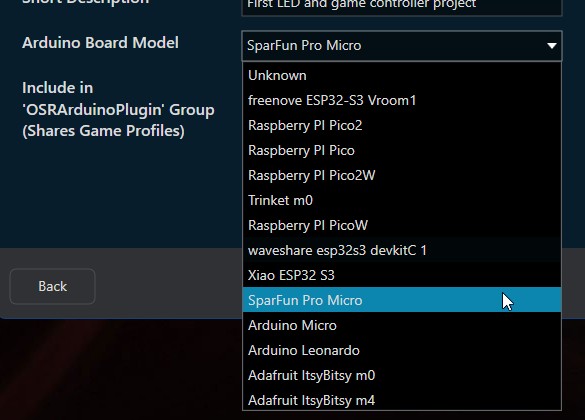
Board Selection
From the Arduino Board Model dropdown, select the specific hardware you are using. Selecting the correct board ensures that OpenSR communicates correctly with your controller’s communication protocol.
Grouping & Game Profiles
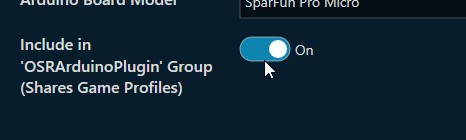
At the bottom of this page, you will see a toggle: Include in ‘OSRArduinoPlugin’ Group. This setting determines how OpenSR manages the “Game Profiles” (the configurations for specific racing games) for this device.
Standalone vs. Shared Profiles
- OFF (Standalone): Your project will have its own unique set of game profiles. Use this if your device is a “one-of-a-kind” build.
- ON (Shared Group): Your project will share game profiles with all other devices in the OSRArduinoPlugin group. This is the recommended setting if you are building multiple identical devices (e.g., three identical button boxes sharing the same LEDs and Inputs behaviors). By grouping them, you only have to configure the buttons and LEDs once, and the settings will apply to all three devices automatically.