
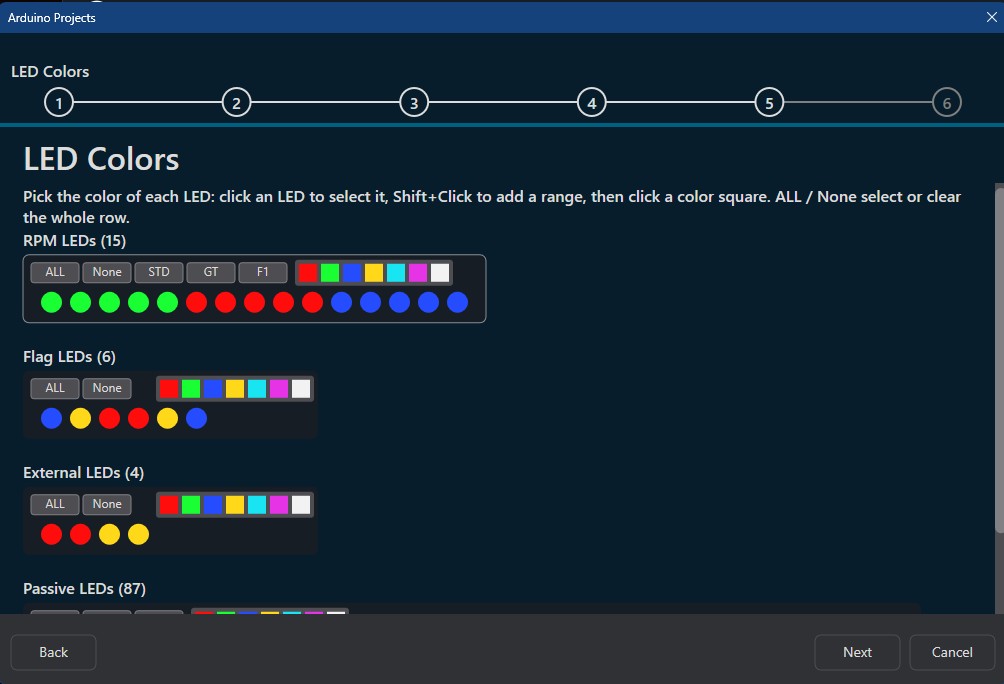
In this step, you will define the visual identity of your device by assigning colors to every LED category. You can use quick presets to match popular racing styles or customize every LED individually to suit your personal preference.
How to Customize Colors
The interface provides several ways to quickly set your color profile:
- Individual Selection: Click an individual LED to select it, then click a color in the palette to apply it.
- Range Selection: Hold Shift + Click to select a range of LEDs (useful for creating gradients).
- Quick Actions: Use the buttons at the start of each row:
- ALL: Applies the selected color to every LED in that category.
- None: Clears the color from all LEDs in that category.
- STD / GT / F1: (RPM Only) Quick presets to instantly apply standard, Grand Touring, or Formula 1 style color schemes.
Understanding the LED Categories
To ensure your hardware behaves as expected, it is important to understand what each category is designed for:
1. RPM LEDs
These are your primary tachometer indicators. They are designed to provide a smooth visual transition as your engine’s RPM increases.
2. Flag LEDs
These are typically used for 3×3 LED arrays on the sides of a steering wheel. They are intended for high-level race state information, such as:
- Race Flags: (e.g., Blue, Yellow, or Red flags).
- Warnings: Critical system alerts or race state notifications.
3. External (EXT) LEDs
While similar to Flag LEDs in behavior, EXT LEDs are typically placed near specific buttons or encoders to provide localized feedback.
- Example: An LED placed next to a Traction Control (TC) encoder can light up to show the current TC level.
- Other uses: ABS level indicators, engine power modes, or specific button-press confirmations.
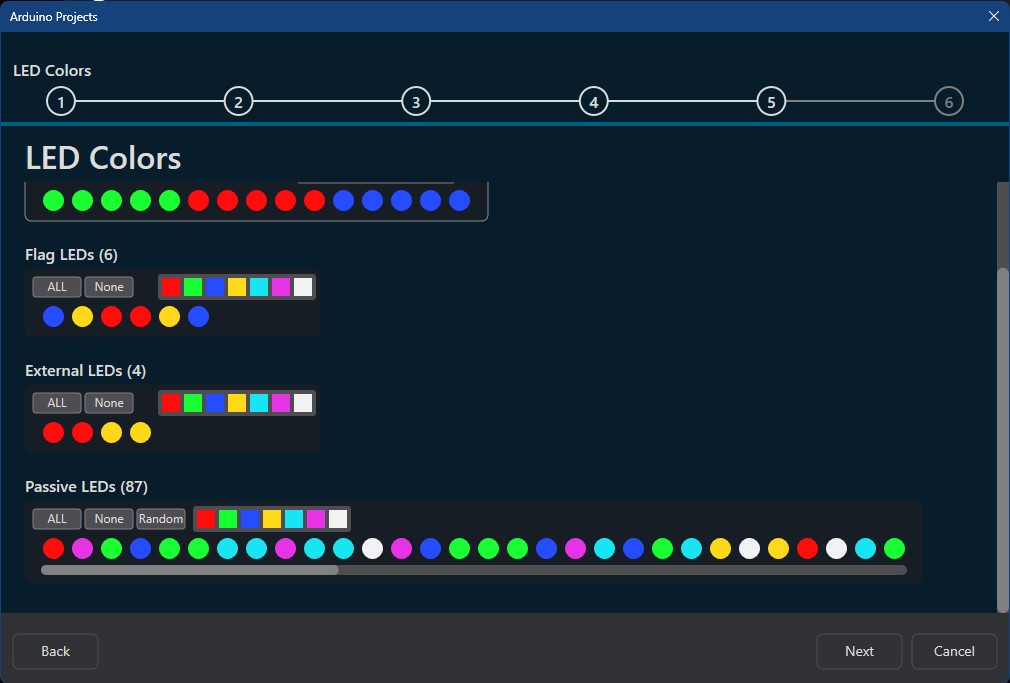
4. Passive LEDs
Unlike the categories above, Passive LEDs are not linked to game configuration or car behavior. They are intended for general illumination or aesthetic “ambient” lighting.
- Behavior: These LEDs are simply “lit up” from start to end.
- Random Button: Clicking the Random button will simply assign a random color to each LED in the passive group for a unique aesthetic look.
Next Step: Click Next to proceed to the final verification step of the wizard & deploying the project