You have reached the final step of the Arduino Project wizard. This page allows you to verify your entire configuration before it is written to your hardware.
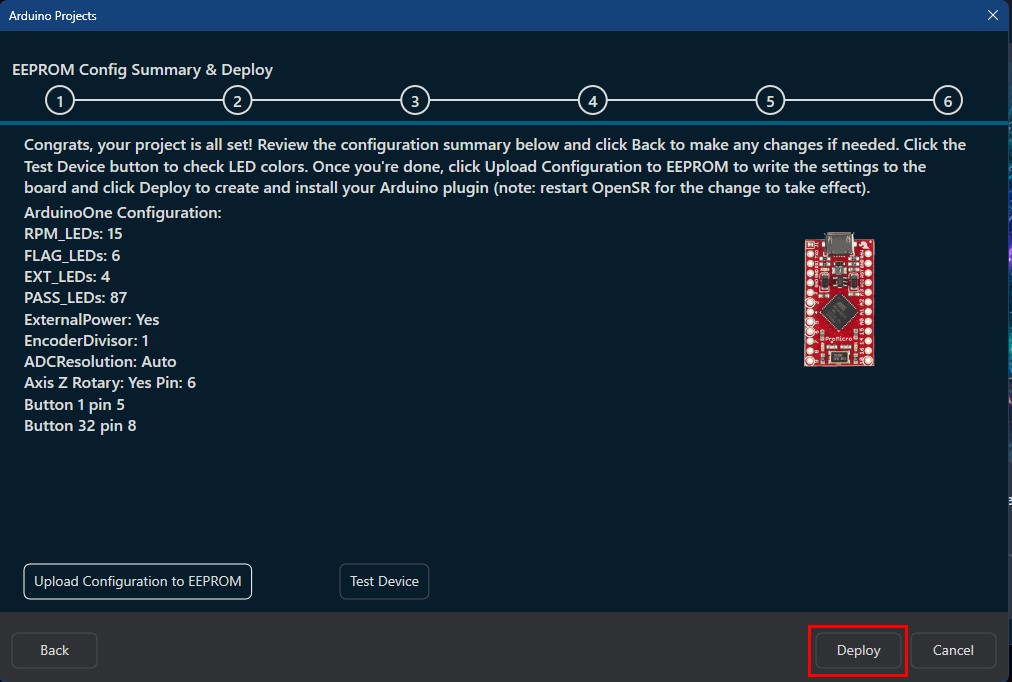
Review and Summary
The wizard provides a complete summary of your project:
- LED Configuration: Final counts for RPM, Flag, External, and Passive LEDs.
- Global Settings: Power supply status, encoder divisors, and ADC resolution.
- Hardware Map: A final list of all button and axis pin assignments.
Navigation: You can use the Back button to return to any previous page (1–5) to modify your choices if you notice any error.
Testing and Uploading
Before finalizing, you have two primary actions:
- Upload Configuration to EEPROM: click this button to write the configuration to your Arduino’s permanent memory (EEPROM). This tells the firmware exactly how to interpret the signals from your buttons and encoders and how to drive your LEDs.
- Test Device: Click this button to perform a quick visual check of your LED colors based on the current configuration.
Deploying the Plugin
After the EEPROM upload is complete, click the Deploy button.
- What happens: This action generates a custom OUT Device Plugin based on your project.
- Restart Required: You will be prompted to restart OpenSR. A restart is required for the software to register the new plugin and its unique hardware profile.
Creating Game Profiles
Once OpenSR has restarted, your new custom device is ready for use:
1. Locate Your Device
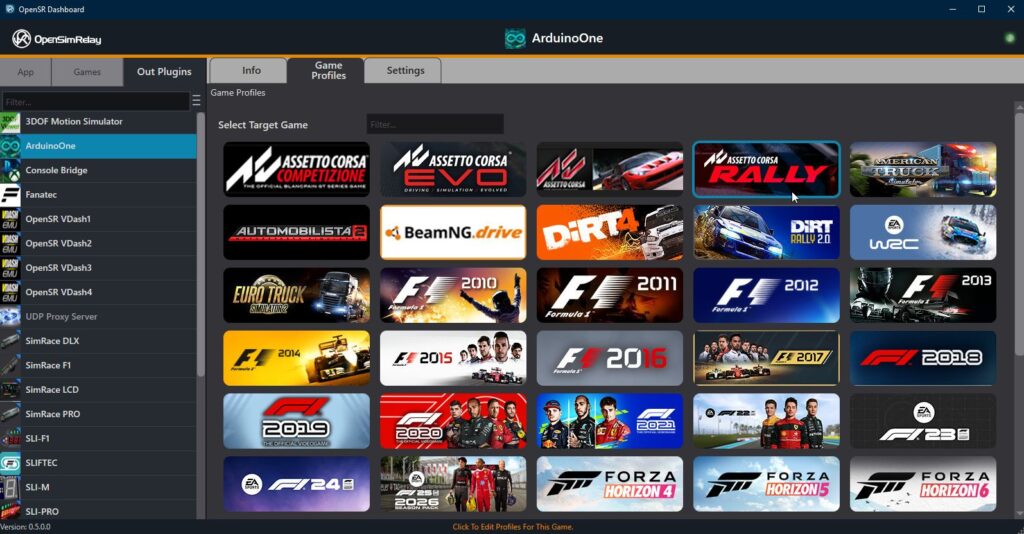
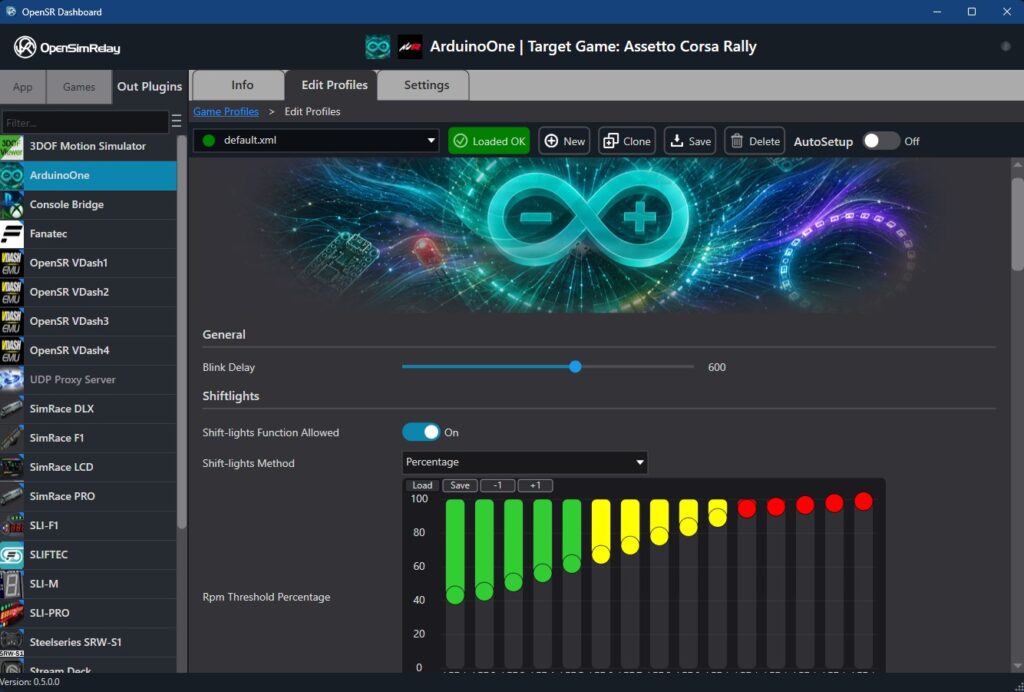
Navigate to the Out Plugins tab in the sidebar. You will find your new project listed there (e.g., “ArduinoOne”).

2. Configure Game Profiles
Click on your new device in the list to open its management dashboard.
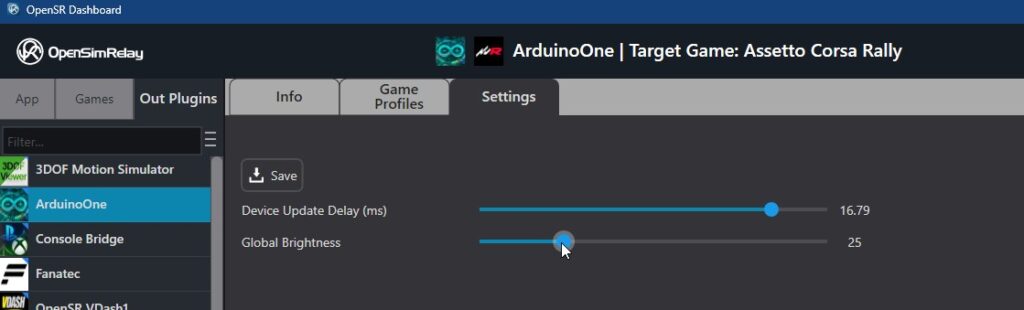
- Pre-created Settings: OpenSR automatically creates a set of Global Settings and Global Brightness values for your new project.
- Game Profiles: Click the Game Profiles tab to start creating profiles for specific games (e.g., Assetto Corsa, iRacing). Here you can map your physical buttons to specific game actions and define unique behaviors for your LED categories.
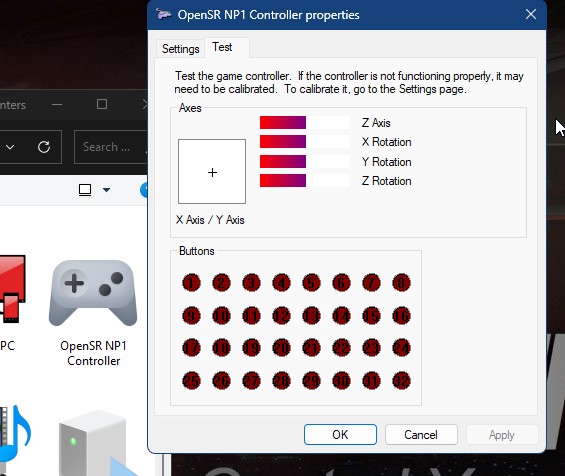
Next Steps: To ensure perfect feel, you can use the Controller Properties window to check your axes and buttons.