Frequently Asked Questions and Answers
To search the Frequently Asked Questions (FAQs), enter your search terms or questions in the box below
0 The Most Common
Register your USB Device or your Emulator
Register your USB Device or VDASH-EMU Emulator
You no longer need a license
DOWNLOAD OpenSR and VDASH-EMU for free.
OpenSR Early Access is now available free of charge for everyone, and we strongly recommend switching to OpenSR for all new installations and future use. It is the platform that will continue to receive new features, improvements, and ongoing development.
If you are looking for information about registering one of our legacy products, you can still find it below. However, OpenSR is now the easiest and most up-to-date way to enjoy the OpenSimRacing ecosystem.
OpenSR is a community-driven project. While the software is completely free, donations are always welcome and help support future development, new features, and infrastructure costs.
As a thank-you to customers who supported our previous software, registered users can sign in to OpenSR using their existing support account and unlock additional benefits, including Pro Performance Mode (PPM).
WATCH THIS VIDEO FIRST
To lean how to download, install and register
your sim racing device (Fanatec, Thrustmaster, Leo Bodnar devices, SIM Display devices,…)
or our digital dash (VDASH-EMU) for Windows or Android
Video Ledsmaster download and installation
Thank you for your interest in EKSIMRacing foundation software
THE BASIC STEPS
IN SHORT
It’s very easy to use the software, watch the video above. Connect your device or run the VDASH-EMU, Download, install Ledsmaster server and then click the REGISTER button in Registration Information window to register your software license for your steering wheel, USB display device or VDASH-EMU.
FULL STEPS
Watch the video above and read the basic steps below to get started with your sim racing hardware.
The video above show up the steps to register and is applicable to all sim racing devices including steering wheel (Fanatec, Thrustmaster,…), SIM Display and Leo Bodnar displays and other supported devices.
During the installation the Windows firewall will prompt you to grant access to our software. This is needed to communicate with our licensing server to get your software license automatically.
1 Connect your USB device

– check if your sim racing hardware is recognized by Windows

or If you want to use the digital dash, click to download and run VDASH-EMU
2

Click to download and install the latest Ledsmaster server
3
CLICK TO READ HOW TO CONFIGURE YOUR GAME
– configure your game to send telemetry data. Ledsmaster needs to receive the car telemetry from the game to work properly. Also, you need to disable the native support of LED in the game options (if applicable).

More info related to each game supported can be found in the Plugins Pages
4 Before Registration

– run Ledsmaster server, click NO on first launch to register your license

5
When you are ready to register, select the Registration Information menu

The Registration Information dialog prompt you to register your software license when you launch Ledsmaster without a license, click “REGISTER” button to make your contribution to support the projects of our nonprofit foundation, then sign up your support account.
 Donation issue from Japan, read the FAQ
Your software license and your support account is validated within 24h and a notification* is sent to you automatically (login your support account to read your pending messages ),
*IMPORTANT: the licensing system will not sent the notification when your license is ready if you don’t have a support account. Do not forget to sign up your support account after making your donation to receive the information to get started quickly with the software.
6 After Registration Completed
– launch Ledsmaster server. This time click YES to download, install and validate your software license automatically from our licensing server,

– run your favorite game
You basically do not need anything else to get started
It is recommended to follow the basic steps above. Use the default setup and enjoy your sim racing rig with your favorite game (Ledsmaster supports more than 60 games) and later start to customize your setup to suit your needs.
Configure AMS2 to “Use Shared memory”?
Each time you upgrade Project CARS don’t forget to check the status of Shared memory in System Settings.
Automobilista 2
To turn ON telemetry go to SYSTEM > Use Shared Memory > Project CARS 2
Check the plugin page to get the latest info, HERE.

Can I use the software commercially or in any business context?
[EN] Can I use the software commercially or in any business context?
The license is for *PERSONAL USE ONLY*
if you run Ledsmaster or SLIMax Manager or MotionMax Manager (all versions) in ANY BUSINESS CONTEXT then a PRO Annual Subscription or a PRO device license is needed to be in conformity of our Terms And Conditions. Any violation of our terms of use may result in the termination without notice of all previously registered licenses. (read the FAQ to get all benefit of PRO Registration).
[FR]Puis-je utiliser le logiciel commercialement ou dans n’importe quel contexte commercial?
La licence est pour * UTILISATION PERSONNELLE UNIQUEMENT
si vous exécutez Ledsmaster ou SLIMax Manager ou MotionMax Manager (toutes les versions) dans TOUT CONTEXTE COMMERCIAL ou PROFESSIONNEL vous devez alors souscrire à un abonnement annuel PRO ou une licence individuelle PRO pour être conforme à nos Conditions d’utilisation. Toutes infractions à nos conditions d’utilisation peuvent entraîner la résiliation sans préavis de toutes les licences préalablement enregistrées. (lisez la FAQ pour obtenir tous les avantages de l’enregistrement PRO).
[IT] Posso usare il software per scopi commerciali o in qualsiasi contesto commerciale?
La licenza è valida per * SOLO PER USO PERSONALE *
se si esegue Ledsmaster o SLIMax Manager o MotionMax Manager (tutte le versioni) in QUALSIASI CONTESTO COMMERCIALE o PROFESSIONNAL, è necessario un abbonamento PRO o licenza PRO per rispettare le nostre condizioni generali. Qualsiasi violazione dei nostri termini d’uso può comportare la risoluzione senza preavviso di tutte le licenze precedentemente registrate. (leggi le FAQ per ottenere tutti i vantaggi della registrazione PRO).
Devices Supported
Check the new updated Ledsmaster F.A.Q., here
Getting Started With VDASH-EMU (virtual display emulator)
VDASH-EMU User guide Tips, Manual, Getting Started instructions, Tutorials are here.
Getting Started with VDASH-EMU
Configure simulation and game to send telemetry
 Configure your game or simulation
Each game or simulation need to be configured to send telemetry data and to get it working with USB Shiftlights Device or to disable its native support of Fanatec or Logitech led and digits to let the SLIMax Manager handle them.
all updates information are available in Plugins Pages Forum
The plugins information page is a good source to know if your game is supported or not, check this HERE
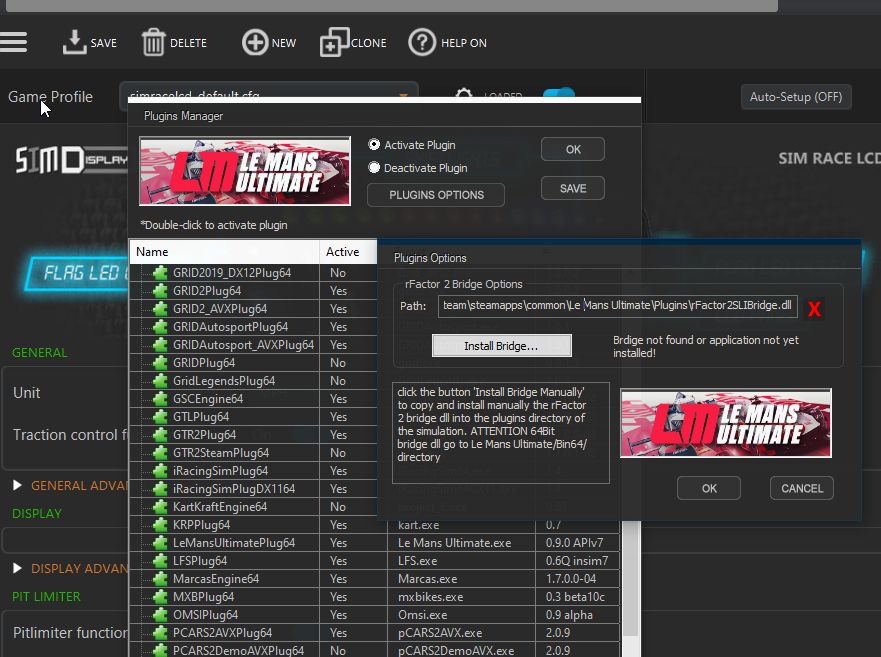
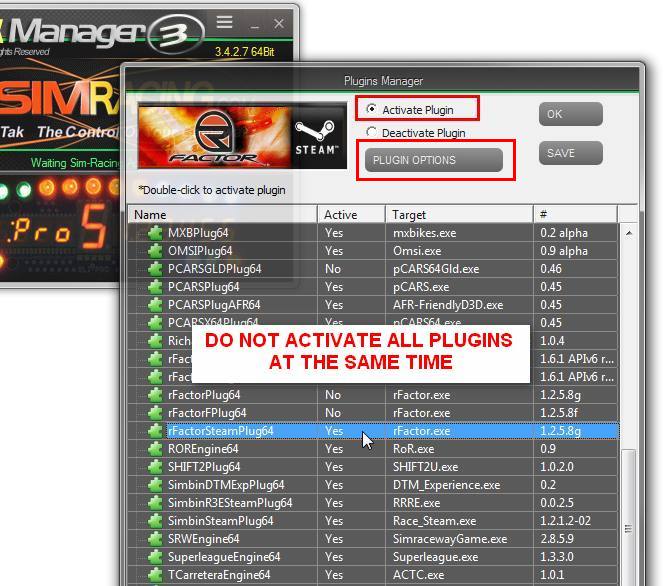
Almost All Plugins are usually included in the installer of Ledsmaster. Select Check for update to get the latest version of plugins and keep your installation up to date.
Here is the list of plugins available at this date (check the plugins page for more info):
Official:
Read the FAQ: configure your game
Studio 397
Le Mans Ultimate,
rFactor Pro**,
rFactor 2,
rFactor,
rFactor Steam,
iRacing
iRacing,
Kunos Simulazioni
Assetto Corsa Pro**,
Assetto Corsa Rally,
Assetto Corsa EVO,
Assetto Corsa Competizione,
Assetto Corsa,
Assetto Corsa XBox/PlayStation Console Bridge,
KW Studios (Sector3)
RaceRoom Racing Experience,
All EA – CodeMasters games
WRC
EA SPORTS WRC 2023,
F1 Games
Codemasters / EA F1 25,
Codemasters / EA F1 25 XBox/PlayStation Console Bridge,
Codemasters / EA F1 24,
Codemasters / EA F1 24 XBox/PlayStation Console Bridge,
Codemasters / EA F1 23,
Codemasters / EA F1 23 XBox/PlayStation Console Bridge,
Codemasters / EA F1 22,
Codemasters / EA F1 22 XBox/PlayStation Console Bridge,
EA Grid Legends,
All CodeMasters games
Codemasters F1 2021,
Codemasters F1 2021 XBox/PlayStation Console Bridge,
Codemasters F1 2020,
Codemasters F1 2019,
Codemasters DiRT Rally 2.0,
Codemasters F1 2018,
Codemasters F1 2017,
Codemasters F1 2017 XBox/PlayStation Console Bridge,
Codemasters DiRT 4,
Codemasters DiRT Rally,
Codemasters F1 2016,
Codemasters F1 2016 XBox/PlayStation Console Bridge,
Codemasters F1 2015,
Codemasters F1 2014,
Codemasters F1 2013,
Codemasters F1 2012,
Codemasters F1 2011,
Codemasters F1 2010,
Codemasters GRID Autosport,
Codemasters GRID2,
Codemasters DiRT3,
Codemasters DiRT2,
Codemasters GRID,
ALL REIZA Studios
Automobilista 2,
Automobilista
Formula Truck (all versions),
Game Stock Car,
SMS Games
Project CARS 3,
Project CARS 2,
Project CARS 2 XBox/PlayStation Console Bridge,
Project CARS,
Project CARS XBox/PlayStation Console Bridge,
All rFactor Clones
ARCA Sim Racing,
Simraceway,
Superleague Formula,
Turismo Carretera,
Simbin Studios
Simbin GTR2,
Simbin Steam GTR2,
Simbin Steam Race07 + all packs,
Simbin GTR EVO,
Simbin RaceON,
Simbin RaceInjection,
Simbin STCC I / II,
Simbin WTCC,
Simbin Injection,
Simbin GT Power,
Simbin Retro Expansion,
Simbin DTM Experience,
Others
Forza Motorsport 2023 (beta),
WRC Generations,
Forza Horizon 4 (beta),
Forza Horizon 5 (beta),
Forza Motorsport 7 (beta),
BeamNG Drive,
KartKraft (Black Delta),
PiBoSo Kart Racing Pro,
PiBoSo MX Bikes,
PiBoSo GP Bikes,
PiBoSo World Racing Series,
GRally,Papyrus NASCAR 2003, (outdated)
Live For Speed,netKar PRO,(outdated)
Oldies
SMS SHIFT2,
Simbin GTR
Grand Prix Legends,
GT Legends,
Richard Burns Rally,
X Motor Racing,
SCS Software Truck Sim:
Euro Truck Simulation 2,
American Truck Simulator
Fligth-Sim
XPlane 10*,
XPlane 11*,
DCS World (Digital Combat Simulator),
Flight Simulator X (FSX)*,
Flight Simulator 2020 (FS2020)*,
Other
NoLimits Roller Coaster Simulation 2*
*Available on demand (not free)
**PRO custom plugins available to PRO subscribers only, contact us


OTHERS
|
|
Check the plugins pages for more info… |


How to change speed unit MPH to KMH?
To change the speed unit from US/Imperial to Metric or MPH to KMH (KPH):
Change speed unit to KPH ( Km/h, METRIC) or MPH in GENERAL > Unit section, here is an example for the SLI-PRO device:

Configure Project CARS to “Use Shared memory”?
Each time you upgrade Project CARS don’t forget to check the status of Shared memory setting.
Project CARS 3
To turn ON telemetry go to SYSTEM > Use Shared Memory > Project CARS 2
Check the plugin page to get the latest info, HERE.

disable RPM/Gear feedback in Settings > Wheel & FFB

Project CARS 2
To turn ON telemetry go to SYSTEM > Use Shared Memory > Project CARS 2
Check the plugin page to get the latest info, HERE.

Also, if you have a Fanatec wheel disable RPM/Gear feedback in OPTIONS > CONTROLS > Configuration see the picture below:

Project CARS 1
To turn ON telemetry go to Gameplay > Use Shared Memory > Yes
Check the plugin page to get the latest info, HERE.

Also, if you have a Fanatec (CSW or others) wheel disable RPM/Gear feedback in Controls Setup see the picture below:

Related FAQ:
Configure your game or simulation to send telemetry data
For more info visit: https://www.eksimracing.org
How to get the display or emulator serial number?
GET USB DEVICE DISPLAY OR EMULATOR SERIAL NUMBER AND REGISTER:
To get the serial number of your USB Device Display, steering wheel or Android/Windows Emulator,
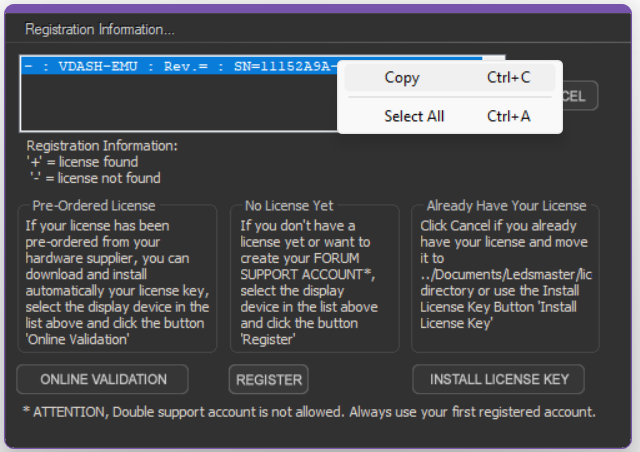
Make sure your hardware is installed and recognized by Windows, launch Ledsmaster (download the latest version) and the ‘Registration Information‘ window should show up the first time you launch the app, if it didn’t then select the menu “Registration Info…”
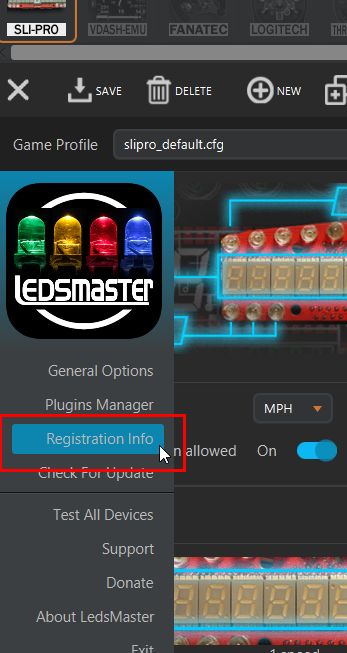
The Registration Info window will open automatically if your are not yet registered and/or your license is not found.

Select the device or emulator line and right-click to copy the type with the serial number.
Notes: the ‘– :‘ prefix before the serial number indicates that the license is not yet installed.
You have now successfully copied your device/emu serial number.
Click the REGISTER button to register and create your support account.

How To Use Your Codemasters DiRT Rally 2.0, DiRT4 With Simucube FW or MMOS OSW?
UPDATED by Zappadoc 2019-02-26

How to get ffb with your Codemasters games DiRT Rally 2.0 and DiRT 4 using your simucube osw direct drive?
IMPORTANT: don’t trust guys around which give you the wrong information. Double check your device settings and compare with the line below, This is the correct way to declare your DD to be able to choose between Direct Drive driver and DR2.0 FFB settings, With the correct parameters this will greatly improve the FFB in Dirt Rally 2.0 and please add the link to this page which is updated regularly and do not just copy/past these info. Thanks.

The current DR2.0 FFB will not give you as much surface information as the DR1.0 but you can play with params to improve it. Beware all grayed settings are in fact perfectly usable. After a lot of game and simucube FFB tweaks, the feeling should be closer to DR1 but more attenuated unfortunately. We are all waiting for an FFB bug fix from Codemasters.

MMOS
DiRT 4 and DiRT Rally 2.0 MOD FOR SIMUCUBE MMOS MANAGEMENT
For OSW Simucube users, you have to enter the description of the device manually and create the corresponding generic actionmap file. I posted the instructions in Codemasters forum and here.
ATTENTION: THIS MOD DOESN’T CONTAIN ANY FFB PARAMETERS,
This allows the game to recognize the mmos device as a DD steering wheel only.
in game directory
input directory
device_defines.xml
after <!– comments –>
add this line:
<device id="{0FFBF055-0000-0000-0000-504944564944}" name="simucube_osw_mmos" priority="100" type="wheel" official="false" />
IMPORTANT: don’t trust guys around which give you the wrong information. Double check your device settings and compare with the line above, This is the correct way to declare your DD to be able to choose between Direct Drive driver and DR2.0 FFB settings, With the correct parameters this will greatly improve the FFB in Dirt Rally 2.0 and please add the link to this page which is updated regularly and do not just copy/past these info. Thanks.
in actionmap directory
create a xml file with Notepad++ named
simucube_osw_mmos.xml
with:
the xml file below is in attachment
<?xml version="1.0" encoding="utf-8"?>
<action_map name="simucube_osw_mmos" device_name="simucube_osw_mmos" library="lib_direct_input">
  <group name="driving">
    <action name="change_view">
      <axis name="di_button_6" />
    </action>
    <group name="gear">
      <group name="sequential">
        <action name="up">
          <axis name="di_button_10" />
        </action>
        <action name="down">
          <axis name="di_button_5" />
        </action>
      </group>
    </group>
    <action name="handbrake">
      <axis name="di_button_8" />
    </action>
    <action name="headlights">
      <axis name="di_button_11" />
    </action>
    <group name="look">
      <action name="back">
        <axis name="di_button_7" />
      </action>
    </group>
    <action name="pause">
      <axis name="di_button_14" />
    </action>
    <action name="reset_vehicle">
      <axis name="di_button_9" />
    </action>
    <action name="roadside_repair">
      <axis name="di_button_1" />
    </action>
    <group name="steer">
      <action name="left">
        <axis name="di_x_axis" type="lower" deadzone="0.0" saturation="1.0" />
      </action>
      <action name="right">
        <axis name="di_x_axis" type="upper" deadzone="0.0" saturation="1.0" />
      </action>
    </group>
    <action name="wipers">
      <axis name="di_button_13" />
    </action>
  </group>
  <group name="school">
    <action name="instructor_recap">
      <axis name="di_button_3" />
    </action>
  </group>
  <group name="menu">
    <group name="button">
      <action name="3">
        <axis name="di_button_2" />
      </action>
      <action name="4">
        <axis name="di_button_4" />
      </action>
      <action name="start">
        <axis name="di_button_1" />
      </action>
      <action name="select">
        <axis name="di_button_15" />
      </action>
      <group name="shoulder">
        <action name="left">
          <axis name="di_button_5" />
        </action>
        <action name="right">
          <axis name="di_button_10" />
        </action>
      </group>
    </group>
    <group name="navigate">
      <action name="back">
        <axis name="di_button_11" />
      </action>
      <action name="select">
        <axis name="di_button_13" />
      </action>
      <action name="cancel_keybinding">
        <axis name="di_button_14" />
      </action>
    </group>
    <group name="view">
      <action name="left">
        <axis name="di_x_axis" type="lower" deadzone="0.0" saturation="1.0" />
      </action>
      <action name="right">
        <axis name="di_x_axis" type="upper" deadzone="0.0" saturation="1.0" />
      </action>
    </group>
  </group>
  <group name="replay">
    <action name="exit">
      <axis name="di_button_11" />
    </action>
    <action name="forward">
      <axis name="di_x_axis" type="upper" deadzone="0.0" saturation="1.0" />
    </action>
    <action name="rewind">
      <axis name="di_x_axis" type="lower" deadzone="0.0" saturation="1.0" />
    </action>
    <action name="pause">
      <axis name="di_button_13" />
    </action>
    <group name="toggle">
      <action name="music">
        <axis name="di_button_6" />
      </action>
      <action name="ui">
        <axis name="di_button_12" />
      </action>
    </group>
    <group name="camera">
      <action name="previous">
        <axis name="di_button_5" />
      </action>
      <action name="next">
        <axis name="di_button_10" />
      </action>
    </group>
  </group>
  <group name="network">
    <group name="toggle">
      <action name="voice">
        <axis name="di_button_3" />
      </action>
    </group>
  </group>
</action_map>
DOWNLOAD simucube_osw_mmos xml
Unzip and copy the xml file in the correct directory
new “flavor” actionmap with minimal settings, use load preset in game settings to restore this minimal settings:
create a xml file with Notepad++ named
simucube_osw_mmos_minimal.xml
with:
<?xml version="1.0" encoding="utf-8"?>
<action_map name="simucube_osw_mmos_minimal" device_name="simucube_osw_mmos" library="lib_direct_input">
  <axis_defaults>
    <axis name="di_x_axis">
    <action deadzone="0" name="driving.steer.left" />
    <action deadzone="0" name="driving.steer.right" />
    </axis>
  </axis_defaults>
  <group name="driving">
    <group name="steer">
      <action name="left">
       <axis name="di_x_axis" type="lower" />
      </action>
     <action name="right">
      <axis name="di_x_axis" type="upper" />
    </action>
  </group>
 </group>
</action_map>
DOWNLOAD simucube_osw_mmos_minimal
Unzip and copy the xml file in the correct directory
Simucube FW
DiRT 4 and DiRT Rally 2.0 MOD FOR NATIVE SIMUCUBE FW MANAGEMENT

For OSW Simucube users, you have to enter the description of the device manually and create the corresponding generic actionmap file. I posted the instructions in Codemasters forum and here.
ATTENTION: THIS MOD DOESN’T CONTAIN ANY FFB PARAMETERS,
This allows the game to recognize the mmos device as a DD steering wheel only.
in game directory
input directory
device_defines.xml
after <!– comments –>
add this line:
<device id="{0D5A16D0-0000-0000-0000-504944564944}" name="simucube_osw" priority="100" type="wheel" official="false" />IMPORTANT: don’t trust guys around which give you the wrong information. Double check your device settings and compare with the line above, This is the correct way to declare your DD to be able to choose between Direct Drive driver and DR2.0 FFB settings, With the correct parameters this will greatly improve the FFB in Dirt Rally 2.0 and please add the link to this page which is updated regularly and do not just copy/past these info. Thanks.
in actionmap directory
create a xml file with Notepad++ named
simucube_osw.xml
with:
the xml file below is in attachment
<?xml version="1.0" encoding="utf-8"?>
<action_map name="simucube_osw" device_name="simucube_osw" library="lib_direct_input">
  <group name="driving">
    <action name="change_view">
      <axis name="di_button_6" />
    </action>
    <group name="gear">
      <group name="sequential">
        <action name="up">
          <axis name="di_button_10" />
        </action>
        <action name="down">
          <axis name="di_button_5" />
        </action>
      </group>
    </group>
    <action name="handbrake">
      <axis name="di_button_8" />
    </action>
    <action name="headlights">
      <axis name="di_button_11" />
    </action>
    <group name="look">
      <action name="back">
        <axis name="di_button_7" />
      </action>
    </group>
    <action name="pause">
      <axis name="di_button_14" />
    </action>
    <action name="reset_vehicle">
      <axis name="di_button_9" />
    </action>
    <action name="roadside_repair">
      <axis name="di_button_1" />
    </action>
    <group name="steer">
      <action name="left">
        <axis name="di_x_axis" type="lower" deadzone="0.0" saturation="1.0" />
      </action>
      <action name="right">
        <axis name="di_x_axis" type="upper" deadzone="0.0" saturation="1.0" />
      </action>
    </group>
    <action name="wipers">
      <axis name="di_button_13" />
    </action>
  </group>
  <group name="school">
    <action name="instructor_recap">
      <axis name="di_button_3" />
    </action>
  </group>
  <group name="menu">
    <group name="button">
      <action name="3">
        <axis name="di_button_2" />
      </action>
      <action name="4">
        <axis name="di_button_4" />
      </action>
      <action name="start">
        <axis name="di_button_1" />
      </action>
      <action name="select">
        <axis name="di_button_15" />
      </action>
      <group name="shoulder">
        <action name="left">
          <axis name="di_button_5" />
        </action>
        <action name="right">
          <axis name="di_button_10" />
        </action>
      </group>
    </group>
    <group name="navigate">
      <action name="back">
        <axis name="di_button_11" />
      </action>
      <action name="select">
        <axis name="di_button_13" />
      </action>
      <action name="cancel_keybinding">
        <axis name="di_button_14" />
      </action>
    </group>
    <group name="view">
      <action name="left">
        <axis name="di_x_axis" type="lower" deadzone="0.0" saturation="1.0" />
      </action>
      <action name="right">
        <axis name="di_x_axis" type="upper" deadzone="0.0" saturation="1.0" />
      </action>
    </group>
  </group>
  <group name="replay">
    <action name="exit">
      <axis name="di_button_11" />
    </action>
    <action name="forward">
      <axis name="di_x_axis" type="upper" deadzone="0.0" saturation="1.0" />
    </action>
    <action name="rewind">
      <axis name="di_x_axis" type="lower" deadzone="0.0" saturation="1.0" />
    </action>
    <action name="pause">
      <axis name="di_button_13" />
    </action>
    <group name="toggle">
      <action name="music">
        <axis name="di_button_6" />
      </action>
      <action name="ui">
        <axis name="di_button_12" />
      </action>
    </group>
    <group name="camera">
      <action name="previous">
        <axis name="di_button_5" />
      </action>
      <action name="next">
        <axis name="di_button_10" />
      </action>
    </group>
  </group>
  <group name="network">
    <group name="toggle">
      <action name="voice">
        <axis name="di_button_3" />
      </action>
    </group>
  </group>
</action_map>
Unzip and copy the xml file in the correct directory
new “flavor” actionmap with minimal settings, use load preset in game settings to restore this minimal settings:
create a xml file with Notepad++ named
simucube_osw_minimal.xml
with:
<?xml version="1.0" encoding="utf-8"?>
<action_map name="simucube_osw_minimal" device_name="simucube_osw" library="lib_direct_input">
  <axis_defaults>
    <axis name="di_x_axis">
    <action deadzone="0" name="driving.steer.left" />
    <action deadzone="0" name="driving.steer.right" />
    </axis>
  </axis_defaults>
  <group name="driving">
    <group name="steer">
      <action name="left">
       <axis name="di_x_axis" type="lower" />
      </action>
     <action name="right">
      <axis name="di_x_axis" type="upper" />
    </action>
  </group>
 </group>
</action_map>Unzip and copy the xml file in the correct directory
Fanatec Podium
DiRT 4 and DiRT Rally 2.0 MOD FOR FANATEC PODIUM DD1/DD2

Coming soon…
Tutorial Video
French tutorial video by Franconen – HowTo Activate FFB
French tutorial video by Franconen – HowTo Improve FFB
How to register additional license ( purchase additional license )?
REGISTER (purchase) ADDITIONAL LICENSE:

Register ADDITIONAL license is the same process as registering your first license. You need to use Ledsmaster and make a donation in USD to get your license.
EKSIMRacing Foundation is a nonprofit organization and ask you to take part to the project. To get your license consider making a simple donation. Thank you for your support.
Make your donation only, DO NOT CREATE A NEW SUPPORT ACCOUNT IF YOU ALREADY OWN ONE, double account is NOT allowed.
Run Ledsmaster
> Select Registration Info menu if the windows is not visible
> Select the device or emulator in the list
> And click the REGISTER button
> and make your donation
Check Your Account Profile (you need to have a support account):
if EKSRIMRacing $ credit is available, a BLUE button will be visible on your support account Profile.
Click the link below to be redirected to your support account profile (copy/paste your EMU SERIAL NUMBER to avoid any error):
Notes:
DO NOT CREATE A NEW SUPPORT ACCOUNT IF YOU ALREADY OWN ONE, just make your donation.
Hardware, Devices, EMU Supported

The current devices supported by Ledsmaster
(updated 2024-03) Ledsmaster manages all devices simultaneously. Get more info on Ledsmaster


VoCore USB Screen 4″, 4.3″, 5″, 6.8″ and Round


STREAM DECK MK2 and XL v1/v2 with VDASH-EMU (Windows).
Leo Bodnar Shift-Lights Interface (SLI)

USB Shift lights Interface ( SLI-F1, SLI-PRO and SLI-M) and game controllers from Leo Bodnar,
Fanatec Conversion Kit

– Leo Bodnar Fanatec Conversion Kit is supported
(This is a proprietary implementation and NOT an emulation of Fanatec driver and can be used WITHOUT FANATEC Driver)
– Darknao Conversion Kit based on Teensy LC board is supported
(this is an emulation of Fanatec Driver and Fanatec driver must be installed)
– latest Sim Racing Machines (SRM) Conversion Kit v5 is NOT YET supported due to a change of their firmware/board
(this is a proprietary implementation and do not require the Fanatec driver).
– oldest Sim Racing Machines (SRM) Conversion Kit based on Leo Bodnar board is supported.
(This is a proprietary implementation and NOT an emulation of Fanatec driver and can be used WITHOUT FANATEC Driver)
Fanatec Steering Wheel and Pedals Set
Almost all Fanatec rim* (including the latest Fomula V2.x steering wheel)

*Ledsmaster have been tested with latest Fanatec driver and firmware and compiled with latest Fanatec SDK v4.05+
The software manages all Fanatec hardware supported by the version 4.05 of the official Fanatec SDK.
Logitech

G25/G27/G29/G920/G923/G PRO Racing DD
Thrustmaster TS-PC Racer Ferrari 488 Challenge Edition

(All Other Thrustmaster Wheel Base buttons and encoders as generic device only)
Steelseries

Steelseries SRW-S1 steering wheel and also, support any HID Compliant hardware including, any buttons-box like the famous Derek Speare Designs (DSD) devices, any buttons and encoders controllers, joystick, gamepad, shifter, etc.
VDASH-EMU Sim Racing Digital Dash
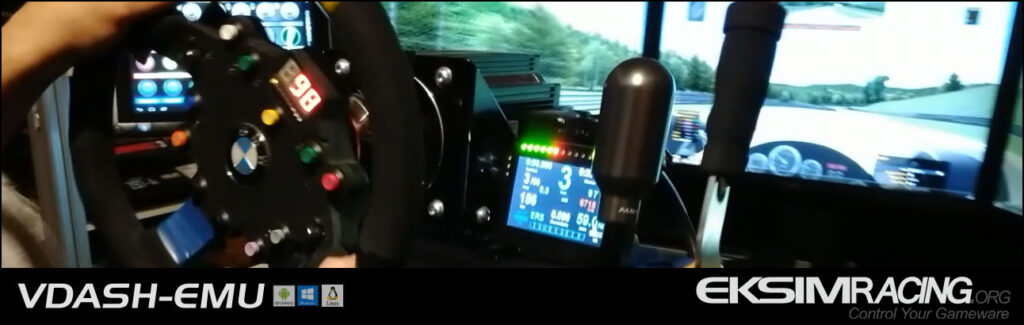
VDASH-EMU sim racing digital dash (usb device firmware emulator of real racing dash and real button-box) From EKSIMRacing. VDASH-EMU For Windows includes the native support of VoCore screens. Check the VDASH-EMU page for more info.
SimDisplay Sim Racing Devices

SIM RACE LCD, SIM RACE GT, SIM RACE F1, SIM RACE Deluxe or SIM RACE PRO USB Shift lights Display devices from SIM Display,
Led of my Logitech steering wheel not working, why?
Your Logitech G29 or G923 or PRO RACING WHEEL rev-led (shiftlights) is not working properly on Windows 10 or Windows 11
Unfortunately there’s a significant issue with G HUB driver on Windows 10/11 which prevent to get access to the rev led (shift-lights) features from SLIMax Manager Pro or from game apps. Sometime this is working after uninstalling G HUB or just quitting G Hub but most of the time it doesn’t work. however, everything is working as expected on Windows 7 using G HUB for Windows 7.
G27 use its own driver and not G HUB so it works.
To get your rev-led ready for SLIMax Manager Pro do not install G Hub but “Logitech Gaming software” (LGS). The steering wheel driver is correctly installed even if LGS indicates no usb device detected after installation (it’s safe to uncheck run at startup in LGS settings and exit LGS).
Follow these links below to download the corresponding version:
Windows 10/11 64-bit
https://download01.logi.com/web/ftp/pub/techsupport/gaming/LGS_9.04.49_x64_Logitech.exe

Windows 8/7 64-bit
https://download01.logi.com/web/ftp/pub/techsupport/gaming/LGS_9.02.74_x64_Logitech.exe

Logitech Gaming Software Download link:
https://support.logi.com/hc/en-us/articles/360025298053
Windows Protected Your PC Warning Message (For Apps Not From Windows Store)
Windows 10 and greater display a warning message if the application is not from Windows Store, click “Run anyway” and “Allow” to install Ledsmaster and let the app communicate with other devices.


VIRTUALBOX Host Adapter Conflict
VIRTUALBOX Conflict: VirtualBox HOST / Ethernet adapter is catching/rerouting all inbound UDP stream and prevents Ledsmaster to communicate with VDASH-EMU. Disable the VIRTUALBOX Ethernet adapter on your Windows to be able to use the software.


How To Renew My Fanatec License After The Update?
Since version 0.9.0.5k the licensing system for Fanatec users has been adjusted. If your Ledsmaster license was previously bonded to your Fanatec wheel base, you will need to update it accordingly.
First, Check For Update to get the latest version of Ledsmaster and register the new license format of your Fanatec device.

All registered Fanatec users can simply log in to their account, copy their new license number, and apply the update free of charge if you acquired your license by making a minimum contribution to our nonprofit foundation. For others, please follow the normal registration process to make your donation.
Old Number Format:
…..-….-….-…AG
New Number Format:
XXXXXXXXXXXXXXXXXXXXXXXXXXXXXXXXXXXAG
We sincerely apologize for any inconvenience this may cause and appreciate your understanding as we continue to improve Ledsmaster for the best possible experience.
Thank you for your support!
Free Limited Mode Not Found
The “Free Limited” mode has been removed following user feedback. Many users found the nag screens frustrating and expressed a preference to support our non-profit foundation’s projects with a small contribution, rather than use a limited demo. Registration is now required to use the software. Thank you all for your continued support!
How To Get Codemasters F1 20xx Dirt2 And Dirt3 Working With Latest Software
ATTENTION (common error):
Here we are talking about setup the game to send telemetry data by editing the setup file in ../DOCUMENTS/MY GAMES/ directory and NOT in the game directory.
More infos available in Plugins Pages
F1 25 PC Steam and XB/PS Console version (API v13)
(disable native support of SLI-PRO, Thrustmaster and Fanatec hardware)
The UDP Settings are now directly available in the game UDP settings
To configure F1 25, launch the game and in Telemetry settings:
– set Fanatec LED OFF
– set SLI-PRO LED OFF
– set UDP Telemetry to ON
– set the rate to 60Hz,
– do not activate Broadcast.
– if the IP is not set then put 127.0.0.1 which is your PC (localhost),
– format: 2025
Notes For XBOX/PlayStation PS5/PS4:
The “REMOTE Management” configuration is available in Plugins Pages
F1 24 PC Steam and XB/PS Console version (API v12)
(disable native support of SLI-PRO, Thrustmaster and Fanatec hardware)
The UDP Settings are now directly available in the game UDP settings
To configure F1 24, launch the game and in Telemetry settings:
– set Fanatec LED OFF
– set SLI-PRO LED OFF
– set UDP Telemetry to ON
– set the rate to 60Hz,
– do not activate Broadcast.
– if the IP is not set then put 127.0.0.1 which is your PC (localhost),
– format: 2024
Notes For XBOX/PlayStation PS5/PS4:
The “REMOTE Management” configuration is available in Plugins Pages
F1 23 PC Steam and XB/PS Console version (API v11)
(disable native support of SLI-PRO, Thrustmaster and Fanatec hardware)
The UDP Settings are now directly available in the game UDP settings
To configure F1 23, launch the game and in Telemetry settings:
– set Fanatec LED OFF
– set SLI-PRO LED OFF
– set UDP Telemetry to ON
– set the rate to 60Hz,
– do not activate Broadcast.
– if the IP is not set then put 127.0.0.1 which is your PC (localhost),
– format: 2023
Notes For XBOX/PlayStation PS5/PS4:
The “REMOTE Management” configuration is available in Plugins Pages
F1 22 PC Steam and XB/PS Console version (API v10)
(disable native support of SLI-PRO, G27 and Fanatec hardware)
The UDP Settings are now directly available in the game UDP settings
To configure F1 22, launch the game and in Telemetry settings:
– set Fanatec LED OFF
– set SLI-PRO LED OFF
– set UDP Telemetry to ON
– set the rate to 60Hz,
– do not activate Broadcast.
– if the IP is not set then put 127.0.0.1 which is your PC (localhost),
– format: 2022
Notes For XBOX/PlayStation PS5/PS4:
This “REMOTE Management” configuration includes:

– a game console connected to your LAN network
– a PC or laptop (also connected to your LAN) running SLIMax Manager Pro and the F1 22 Console bridge app
– USB dash display connected to your PC or Laptop
– or/and a VDASH-EMU running on Windows or Android Tablet
(VDASH-EMU is recommended so you can put the tablet under the TV to get a clear view of telemetry data during your game session on console)
follow the above instruction to activate telemetry in game but change the IP:
– Enter the IP address (192.168.x.x) of your PC running SLIMax Manager Pro
Check For Update to get the F1 22 Console Bridge app (installed automatically inside the SLIMax Manager Pro directory)
To start a session run the F1 22 Console Bridge on the PC after SLIMax Manager Pro
(find the app inside SLIMax Manager Pro application directory)
F1 2021 PC Steam and XB1/PS4 Console version (API v9)
(disable native support of SLI-PRO, G27 and Fanatec hardware)
The UDP Settings are now directly available in the game UDP settings
To configure F1 2021, launch the game and in Telemetry settings:
– set Fanatec LED OFF
– set SLI-PRO LED OFF
– set UDP Telemetry to ON
– set the rate to 60Hz,
– do not activate Broadcast.
– if the IP is not set then put 127.0.0.1 which is your PC (localhost),
– format: 2021
– set audience to: Restricted
Notes For XBOX/PS4:
This “REMOTE Management” configuration includes:

– a game console connected to your LAN network
– a PC or laptop (also connected to your LAN) running SLIMax Manager Pro and the F1 2021 Console bridge
– USB dash display connected to your PC or Laptop
– or/and a VDASH-EMU running on Windows or Android Tablet
(VDASH-EMU is recommended so you can put the tablet under the TV to get a clear view of telemetry data during your game session)
follow the above instruction to activate telemetry in game but change the IP:
– Enter the IP address (192.168.x.x) of your PC running SLIMax Manager Pro
Check For Update to get the F1 Console Bridge app (installed automatically inside the SLIMax Manager Pro directory)
To start a session run the F1 2021 Console Bridge on the PC after SLIMax Manager Pro
(find the app inside SLIMax Manager Pro application directory)
F1 2020 PC Steam and XB1/PS4 Console version (API v8)
(disable native support of SLI-PRO, G27 and Fanatec hardware)
The UDP Settings are now directly available in the game UDP settings
To configure F1 2020, simply launch the game and in Telemetry settings:

– set Fanatec LED OFF
– set SLI-PRO LED OFF
– set UDP Telemetry to ON
– set the rate to 60Hz,
– do not activate Broadcast.
– if the IP is not set then put 127.0.0.1 which is your PC (localhost),
– format: 2020
Notes For XBOX/PS4:
The IP address (192.168.x.x) is the IP of your PC running SLIMax Mgr Pro and you can use F1 2017 Console Bridge with UDP Format: Legacy or OLD
F1 2019 PC Steam and XB1/PS4 Console version (API v7)
(disable native support of SLI-PRO, G27 and Fanatec hardware)
The UDP Settings are now directly available in the game UDP settings
To configure F1 2019, simply launch the game and in Telemetry settings
– set Fanatec LED OFF
– set SLI-PRO LED OFF
– set UDP Telemetry to ON
– set the rate to 60Hz,
– do not activate Broadcast.
– if the IP is not set then put 127.0.0.1 which is your PC (localhost),
– format: 2019
Notes For XBOX/PS4:
The IP address (192.168.x.x) is the IP of your PC running SLIMax Mgr Pro and you can use F1 2017 Console Bridge with UDP Format: Legacy
DiRT Rally 2.0 (API v3)
Apply the change below to your hardware config xml file in
..\Documents\My Games\DiRT Rally 2.0\hardwaresettings\ directory

F1 2018 PC Steam and XB1/PS4 Console version (API v6)
(disable native support of SLI-PRO, G27 and Fanatec to let SLIMax Mgr Pro manage them)
The UDP Settings are now directly available in the game UDP settings
To configure F1 2018, simply launch the game and in UDP settings
– set Fanatec LED OFF
– set SLI-PRO LED OFF
– set UDP Telemetry to ON
– set the rate to 60Hz,
– do not activate Broadcast.
– if the IP is not set then put 127.0.0.1 which is your PC (localhost),
– format: 2018

Notes For XBOX/PS4:
The IP address (192.168.x.x) is the IP of your PC running SLIMax Mgr Pro and you can use F1 2017 Console Bridge with UDP Format: Legacy
F1 2017 PC Steam and XB1/PS4 Console version (API v5)
(disable native support of SLI-PRO, G27 and Fanatec to let SLIMax Mgr Pro manage them)
The UDP Settings are now directly available in the game UDP settings
– to configure F1 2017, simply launch the game and in settings
– set Fanatec LED OFF
– set SLI-PRO LED OFF
– set UDP Telemetry to ON
– the rate to 60Hz,
– do not activate Broadcast.
– if the IP is not set then put 127.0.0.1 which your PC (localhost).
Notes For XBOX/PS4:
The IP (192.168.x.x) of your PC running SLIMax Mgr Pro and the Console Bridge must be entered.

For Console XBOX and PS4 version of the game, insert the IP of the PC 192.168.xxx.xxx
(the PC where SLIMax Mgr Pro and F1 2017 Console Bridge are running, see the Console Forum for more info)
DiRT 4 (API v3)
Apply the change below to your hardware config xml file in
..\Documents\My Games\DiRT 4\hardwaresettings\ directory

F1 2016 (API v4)
(disable native support of SLI-PRO, G27 and Fanatec to let SLIMax Mgr Pro manage them)
Apply the change below to your hardware config xml file in
..\Documents\My Games\F1 2016\hardwaresettings\ directory,

DiRT Rally (API v3)
Apply the change below to your hardware config xml file in
..\Documents\My Games\Dirt Rally\hardwaresettings\ directory

F1 2015 (API v4)
(disable native support of SLI-PRO, G27 and Fanatec to let SLIMax Mgr manage them)
Apply the change below to your hardware config xml file in
..\Documents\My Games\F1 2015\hardwaresettings\ directory,
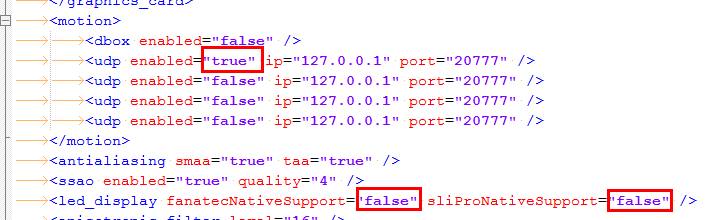
F1 2014 (API v3)
(disable native support of G27 and Fanatec to let SLIMax Mgr manage them)
Apply the change (red text) below to your hardware config xml file in
..\Documents\My Games\FormulaOne2014\hardwaresettings\ directory, sometime it’s necessary to add the line if doesn’t exists.
Find:
<motion enabled="true" extradata="0" delay="1" port="20777" ip="dbox"/>

<led_display nativeSupport="true"/>


and replace with:
<led_display nativeSupport="false" fanatecNativeSupport="false" />

<motion enabled="true" ip="127.0.0.1" port="20777" delay="1" extradata="3" />
F1 2013 (API v3)
(disable native support of G27 and Fanatec to let SLIMax Mgr manage them)
Apply the change (red text) below to your hardware config xml file in
..\Documents\My Games\FormulaOne2013\hardwaresettings\ directory, sometime it’s necessary to add the line if doesn’t exists.
Find:
<motion enabled="true" extradata="0" delay="1" port="20777" ip="dbox"/>

<led_display nativeSupport="true"/>


and replace with:
<led_display nativeSupport="false" fanatecNativeSupport="false" />

<motion enabled="true" ip="127.0.0.1" port="20777" delay="1" extradata="3" />
GRID 2 (API v3)
Apply the change below to your hardware config xml file in
..\Documents\My Games\GRID 2\hardwaresettings\ directory
Find:
<motion enabled="true" extradata="0" delay="1" port="20777" ip="dbox"/>


and replace with:
<motion enabled=”true” ip=”127.0.0.1″ port=”20777″ delay=”1″ extradata=”3″ />
F1 2012 (API v2)
(disable native support of G27 and Fanatec to let SLIMax Mgr manage them)
A:Apply the change (red text) below to your hardware config xml file in
..\Documents\My Games\FormulaOne2012\hardwaresettings\ directory, sometime it’s necessary to add the line if doesn’t exists.
Find:
<motion enabled="true" extradata="0" delay="1" port="20777" ip="dbox"/>

<led_display nativeSupport="true"/>


and replace with:
<led_display nativeSupport="false" fanatecNativeSupport="false" />

<motion enabled="true" ip="127.0.0.1" port="20777" delay="1" extradata="2" />
F1 2011 (API v1)
A:Apply the change (red text) below to your hardware config xml file in
..\Documents\My Games\FormulaOne2011\hardwaresettings directory
Find:
<motion enabled="true" extradata="0" delay="1" port="20777" ip="dbox"/>


and replace with:
<motion enabled="true" ip="127.0.0.1" port="20777" delay="1" extradata="1" />
F1 2010 (API v1)
Apply the change (red text) below to your hardware config xml file in
..\Documents\My Games\FormulaOne\hardwaresettings\ directory
Find:
<motion enabled="true" extradata="0" delay="1" port="20777" ip="dbox"/>


and replace with:
<motion enabled="true" ip="127.0.0.1" port="20777" delay="1" extradata="1" />
DiRT3 and DiRT2 (API v1)
Apply the change below to your hardware config xml file in
..\Documents\My Games\Dirt3\hardwaresettings\ directory
Find:
<motion enabled="true" extradata="0" delay="1" port="20777" ip="dbox"/>


and replace with:
<motion enabled="true" ip="127.0.0.1" port="20777" delay="1" extradata="1" />
.
10+ yo Account Expired, License Renewal & Supporting Ledsmaster
Dear Users,
We’ve noticed some of you are seeing a message about your license being “expired” or “not found” after updating. We completely understand the confusion, so we’d like to clarify what’s happening.
Why is my license expired?
Licenses for Ledsmaster formerly SLIMax Manager Pro are valid for 10 years (as stated in our Terms of Use).
If your license is over 10 years old, it has simply reached its expiration date.
Many users get their license for free or made a small one-time donation for it (e.g., $7 or $10) many years ago, which we truly appreciate! However, keeping our software running and up to date requires ongoing support.
Why do we ask for donations?
Since 2009, more than 15 years ago, our software have been developed and maintained by our non-profit foundation. Your contributions help us cover for example:
Software updates & improvements
Compatibility with new systems and new games (plugins)
Servers & infrastructure costs
Support & maintenance
We’re proud to offer a professional-grade software at a very low cost, and we rely on your generosity to keep it going.
How can I renew my license?
You can keep using the older software but to support our non profit organization and use the full version of Ledsmaster and latest game plugins, you can simply renew your license with a small donation. Just remove the license key from the ../Documents/Ledsmaster/licenses/ folder and launch Ledsmaster to follow the regular registration process. This helps us sustain the project and continue delivering updates.
We truly appreciate your support over the years! If you have any questions, feel free to reach out. Thank you for being part of our community!
EKSIMRacing Foundation
How does the software cost?
The Transition to Free Access
You no longer need a license to get started
We are proud to announce that OpenSR (Early Access) is now available free of charge for everyone. OpenSR includes native support for VDASH-EMU on both Android and Windows, and it is the platform that will receive all future features, improvements, and ongoing development.
For all new installations and future-proofing your setup, we strongly recommend switching to OpenSR. It is the simplest and most up-to-date way to experience your sim racing devices.
A Community-Driven Project
OpenSR is a community-driven project. While the software is completely free to use, it is sustained by the generosity of our users. Donations are always welcome and directly support the development of new features and the maintenance of our technical infrastructure.
A Special Thank You to Our Legacy Users
To show our appreciation for those who supported our previous software, existing registered users can sign in to OpenSR using their original account to unlock additional benefits, including Pro Performance Mode (PPM).
Why Donate?
Since 2007, EKSIMRacing has operated as a non-profit foundation dedicated to promoting sim racing worldwide. While we believe in providing high-quality software for free, building and maintaining professional-grade tools requires significant resources.
Your contributions help us cover:
- Development & Time: The countless hours spent coding, debugging, and refining features.
- Infrastructure: The costs of website maintenance, domain registration, and secure web hosting.
- Hardware Testing: To ensure our software works perfectly for you, we must invest in the hardware we support—including steering wheels, pedal sets, button boxes, and various electronic components.
By making a contribution, you aren’t just buying a product; you are helping the EKSIMRacing project remain active and ensuring that the sim racing community continues to have access to great software.
Thank you for your support.
Select Donation Amount:
($5 or more to include software support)
(5€ or more to include software support)
ATTENTION WE ACCEPT DONATION IN $ USD (United States dollar) AND EURO (€) ONLY
Can I use the software commercially or in any business context?
Read the FAQ for using our software in business context.
Need additional license after OS or ROM update?
DO NOT RESET YOUR ANDROID – DEDICATE YOUR TABLET TO THE EMU
Your license is no longer recognized after a reset or a major update of your Android System OS. Unfortunately, due to the design of this OS, this is normal.
We are sorry by this inconvenience. However, we will never ask you to reset or update your Android System and we recommend to dedicate your Android Phone/Tablet to your EMUlators.
A std OTA update from google usually not alter your Android EMU installation (it depends), We do not recommend to accept OTA our EMU works perfectly with Android v4.x or greater.
NO, the update of VDASH-EMU does not change anything in your license and it remains valid. Installing the updates of VDASH-EMU over it is the correct process for updating your EMU and you will never loose your license by updating it with a new version.
Yes, the Android system update or phone / tablet change requires a new license called “Additional”
Yes, every additional PC / LAPTOP running VDASH-EMU for Windows needs a VALID license called “Additional” to work at FULL SPEED with simulations or games
YES, you have LAG if you do not have a VALID licenses installed for all phone / tablet / PC using the VDASH-EMU on your LAN (you can use up to 4 VDASH-EMU simultaneously).
So do not reset your device! you don’t need to do that to run the EMU and before making a “bug/registration report” please, check if the serial number you registered matches the one you currently have… and if NOT get an “additional” license!
Get an Additional License
Contact us for more information.